
Microsoft To Do: Lists & Tasks
Microsoft CorporationProductivity
4.613.55K Reviews
- Version
- Varies With Device
- Installs
- 10.00M
- Age Rating
- Everyone
Screenshots
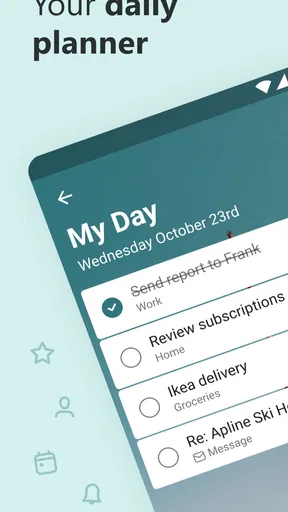

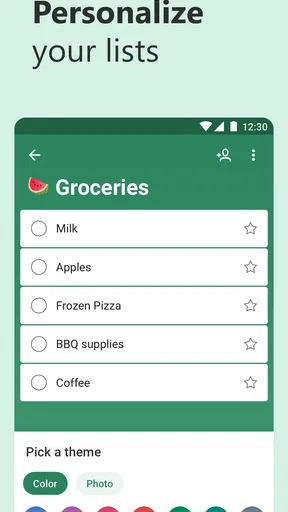
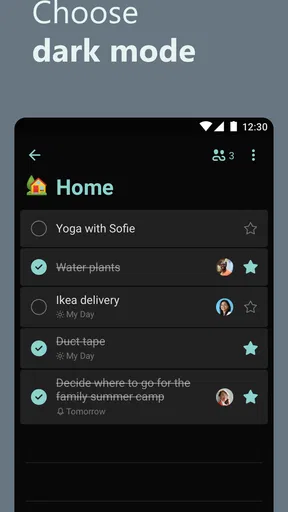
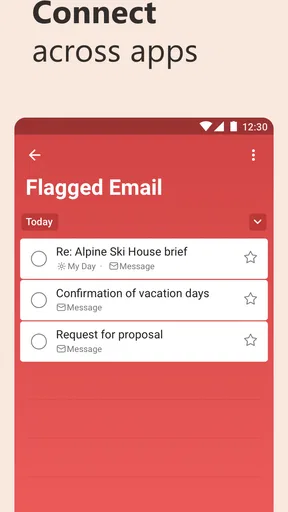
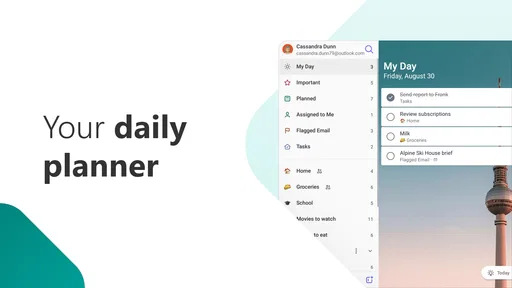
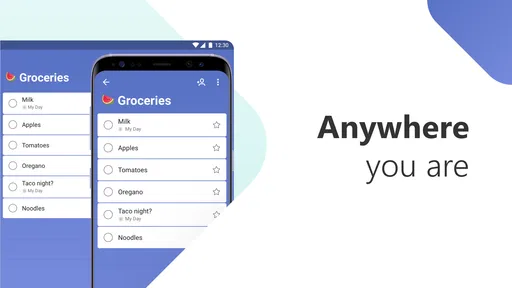
Our Review of Microsoft To Do: Lists & Tasks
 Analysis by Appyee
I use task apps for one simple reason: I want my next action to be obvious when my attention is already elsewhere. Microsoft To Do: Lists & Tasks approaches that problem with a calm, familiar layout rather than trying to turn planning into a complicated project-management system. After spending time with it, I found its strongest quality is not a flashy feature but the low effort needed to open a list, capture something, and return to the day.
This is a free productivity app from Microsoft Corporation, intended for everyone and available on Android devices running version 8.0 or later. It has been around since April 19, 2017, and its audience is substantial: the app has passed ten million installs, with an average rating of 4.6 from roughly 479 thousand ratings. Those figures do not replace personal testing, but they do fit my impression that this is designed as an everyday tool rather than a niche planner.
How Microsoft To Do feels to use in real life
I find Microsoft To Do most useful when I treat it as a place to catch decisions, not as a plan that must be perfected. In everyday use, the small choices—what belongs in a list, what deserves a reminder, and what can wait—make more difference than adding extra structure. That practical rhythm is a good starting point for judging whether it continues to earn a place on my phone.
Readable lists and navigation that stay understandable
The first thing I noticed is how quickly the app communicates its purpose. A task is not buried inside a dashboard full of charts or project terminology. I can create a list for groceries, errands, work follow-ups, or household jobs, then keep each item visible in a straightforward sequence. That simplicity matters when I am checking a phone in a queue or trying to remember something before it disappears from my mind.
The central experience revolves around lists and tasks, with reminders and notes available when an item needs more context. This gives me a useful middle ground. A quick task can remain quick, while something such as “prepare for Monday’s appointment” can carry a note or a reminder instead of forcing me to create a separate document.
For readability, the uncluttered structure is a genuine advantage. I do not have to interpret a calendar view before finding today’s actions. The app’s store summary mentions daily to-do lists, reminders, and shared notes, and those parts work together in a way that makes the interface approachable for someone who has never used a task manager before.
I also like the distinction between capturing a thought and deciding exactly when to act on it. When I am busy, I can put an item into a list first and refine it later. That prevents the common failure of productivity apps where every entry demands a project name, deadline, priority, tag, and category before it can be saved.
There is a trade-off here. People who enjoy visual planning, detailed timelines, or elaborate dashboards may find the presentation too restrained. Microsoft To Do is better at showing a manageable set of actions than at explaining a complex project. If I were coordinating a large team with dependencies and milestones, I would look toward a dedicated project-management service instead.
Small details that make tasks more useful
The most practical workflow I found was to create broad lists by context rather than by every tiny project. For example, I might keep separate lists for home, work, shopping, and calls. Then I use the task text for the action itself and the note area for details such as a model number, a question to ask, or the place where I need to complete it. This keeps the list readable while preserving information I would otherwise lose in a notebook.
Reminders are especially useful when a task is easy to forget but not necessarily urgent. I would not treat every reminder as a hard deadline. Instead, I use one for the moment when I realistically need to start. That distinction prevents a list from becoming a wall of overdue warnings and makes the app feel more supportive than judgmental.
Shared lists can also work well for ordinary household coordination. A shared shopping list, for instance, avoids sending several messages back and forth about whether something has already been bought. The limitation is that shared tasks still require agreement about wording. “Get supplies” is vague; “buy printer paper” is actionable. The app can organize a request, but it cannot make an unclear request clear for you.
One less obvious benefit is that the app can serve as a memory aid without demanding a full planning routine. I can write down a task immediately, add a note while the details are fresh, and revisit it when I have the energy to organize the rest. For users who struggle with working memory or who move between interruptions frequently, that capture-first habit may be more valuable than advanced scheduling.
Motor effort, touch interaction, and sensory load
From a motor perspective, the app’s basic actions are familiar: tap to add, tap to mark a task complete, and use list controls to keep information grouped. That makes it less intimidating than a tool that requires precise manipulation of cards, timelines, or nested menus. I found it suitable for short interactions where I only have one hand free, although any phone-based task manager still depends on accurate touch input.
A useful way to reduce motor effort is to prepare list structure in advance. If I create a recurring home list once, I do not need to rebuild the same categories every time. I can then add individual tasks as they occur. This is a small change, but it reduces repeated navigation and the number of taps needed during a busy day.
For sensory comfort, the restrained presentation helps me avoid the feeling that the app is demanding attention. It does not turn every task into an alarm or a visual event. That is helpful when I already have notifications from messages, calendars, and other services competing for focus.
At the same time, a quiet interface can hide information if I do not maintain it carefully. A long list of unfinished items eventually becomes visually tiring, even when the design itself is clean. I get better results when I review old tasks and rewrite vague entries instead of allowing the app to become a storage box for every unfinished intention.
Users with visual, motor, hearing, or cognitive needs should judge the experience on their own device and with their preferred system settings. I would not describe the app as a complete accessibility solution by itself. Its simple structure can reduce cognitive load, but comfort depends on factors such as screen size, touch accuracy, text settings, notification preferences, and the way each person processes reminders.
Using it when attention, time, or connectivity is limited
Microsoft To Do makes the most sense in situations where I need a dependable place to offload small responsibilities. A realistic example is a parent leaving work while mentally juggling a pharmacy stop, a school form, and a call to make before closing time. I can put each action into a relevant list, add a reminder to the time-sensitive one, and keep the rest visible without writing a long plan.
It also suits students who need to separate reading, assignments, errands, and personal commitments without turning everything into a formal timetable. A student could create a task for an assignment, add the required details in its note, and use a reminder for the point at which work should begin. That is more flexible than relying only on calendar events, because not every task has a fixed appointment.
For shift workers or people with irregular routines, a daily list can be more useful than a traditional “morning, afternoon, evening” system. I can organize tasks around the actual context: before leaving, during a break, after getting home. This is one reason I prefer lists over forcing every responsibility into a calendar slot.
People who are easily distracted may appreciate the ability to keep the current list narrow. I recommend creating a list called “Today” only for actions that genuinely belong in the current day, while storing future ideas elsewhere. Otherwise, the app can reproduce the same problem as a crowded notebook: everything is recorded, but nothing stands out.
There is also a situational advantage for people who switch between personal and professional responsibilities. Separate lists make that boundary visible without requiring two different apps. However, I would be cautious about putting sensitive workplace or personal information into task notes unless the user is comfortable with the account and device arrangements involved. A task manager is not automatically the right place for confidential records just because it is convenient.
Where it fits beside calendars, notes, and heavier planners
I see Microsoft To Do as a companion to a calendar, not a replacement for one. A calendar answers “where must I be and when?” A task list answers “what action do I need to take?” If I put every task into calendar slots, my schedule becomes rigid and unrealistic. If I put appointments into a task list, I lose the visual sense of time. Using each tool for its natural job keeps both clearer.
Compared with a basic notes app, To Do gives unfinished actions a clearer home. A note can hold information, but it does not always make the next step visible. Here I can write “send the estimate” as the task and keep the customer details in the note. That separation helps me act instead of rereading a paragraph and hoping the important verb stands out.
Compared with more advanced task managers, the advantage is reduced setup. I do not need to learn a complex system before capturing a reminder. The cost is depth: users seeking detailed dependencies, extensive project views, or elaborate automation may quickly reach the app’s practical limits. I would choose this product for personal organization and modest shared lists, not for managing a large operation.
Remaining barriers and friction points
The biggest barrier is not that the app is difficult; it is that a simple list can become overloaded. Someone with many responsibilities may create dozens of lists and lose the very clarity that attracted them. I recommend starting with three or four useful contexts and adding more only when a real problem appears.
Another friction point is maintenance. Reminders and notes are only helpful when they remain accurate. If a task changes, I need to edit it rather than assume the original wording will still make sense. This is particularly important for users who depend on clear prompts to compensate for memory or attention difficulties. A vague reminder can be worse than no reminder because it creates another decision at the moment of action.
Notifications also require judgment. Too few reminders and important actions disappear; too many and the phone becomes noisy. I prefer reminders for consequences that matter, while leaving routine tasks in a visible list. That approach makes each alert more meaningful and reduces sensory overload.
People who need extensive collaboration controls should examine their workflow before committing. Sharing a list is useful for coordination, but it is not the same as a full team workspace with formal ownership, reporting, and project oversight. Likewise, users who want a highly visual system may feel that the app gives them too little feedback about progress.
There is a learning curve, but it is mostly a personal one: deciding how to name lists, when to use notes, and which reminders deserve attention. The app does not solve planning habits automatically. Its strength is that it stays out of the way; its weakness is that it leaves the quality of the system largely in my hands.
Who should use it, and who should look elsewhere
I would recommend Microsoft To Do to anyone who wants a free, approachable place for daily actions, reminders, and shared household lists. It is particularly suitable for people who become overwhelmed by complicated productivity systems, users who need to capture tasks quickly, and families or small groups that want a common shopping or errands list.
I would also suggest it to someone trying to build a planning habit gradually. Start with one list for today, one for future tasks, and one practical context such as shopping. After that feels natural, add notes and reminders only where they solve a specific problem. This prevents the app from becoming another hobby that consumes more time than it saves.
I would skip it if my main requirement were detailed project control, visual scheduling, or a specialized professional workflow. A calendar-first tool is better for appointments, while a heavier project platform is better for complex teams. Someone who prefers handwritten planning may also gain little unless they genuinely want a searchable digital backup for everyday actions.
For accessibility-minded users, my verdict is cautiously positive rather than absolute. The clean structure, limited visual noise, and straightforward task model can support different abilities and situations. Still, the experience is not identical for everyone, and the app cannot remove the physical and cognitive demands of using a touchscreen. The best result comes from pairing it with device settings and habits that suit the individual.
My final take on this everyday productivity app
After using it as a place for errands, follow-ups, reminders, and shared household jobs, I came away with a clear impression: Microsoft To Do succeeds by making ordinary organization feel less demanding. It does not try to turn every responsibility into a formal project. Instead, it gives me a practical surface for deciding what needs attention and when.
The free price and Everyone age rating make it easy to try, and the broad adoption reflected in its rating history suggests that many people find the approach dependable. I would not choose it for advanced project management, but I would choose it for a personal task system that needs to remain readable on a busy day.
My strongest recommendation is to keep the structure deliberately small. Use lists for meaningful contexts, write tasks as clear actions, reserve reminders for genuinely time-sensitive work, and review stale items before adding more. With that discipline, the app becomes a useful support for memory, attention, and daily routines rather than another crowded screen.
In short, I see Microsoft To Do as a good fit for people who value clarity over complexity. It is not perfect for every ability, workflow, or planning style, but its calm approach gives many users a realistic place to start—and a reasonable tool to keep using once their needs become routine.
Verdict
Strengths of Microsoft To Do: Lists & Tasks
- Clean, intuitive interface that makes daily task planning easy.
- Syncs reliably across devices with a Microsoft account.
- Supports recurring tasks, reminders, due dates, and subtasks.
- My Day view helps focus on the most important tasks.
- Shared lists make basic collaboration simple for families or teams.
Limitations of Microsoft To Do: Lists & Tasks
- Some advanced project-management features are missing.
- Requires a Microsoft account for full functionality.
- Calendar integration is less flexible than dedicated planner apps.
- Large lists can feel cumbersome to organize and navigate.
- Limited customization compared with more specialized task managers.
Other Releases by Microsoft Corporation
View All
Microsoft OneDrive
Productivity4.6

Microsoft OneNote: Save Notes
Productivity4.6

Link to Windows
Productivity4.0

Microsoft PowerPoint
Productivity4.8
Similar Picks in This Category
View All
Google Calendar
Google LLC4.6

Google Drive
Google LLC4.3

Google Assistant
Google LLC3.9
Microsoft OneDrive
Microsoft Corporation4.6

Samsung Calendar
Samsung Electronics Co., Ltd.4.1
Microsoft OneNote: Save Notes
Microsoft Corporation4.6
Frequently Asked Questions
What is Microsoft To Do: Lists & Tasks used for?
Microsoft To Do is a task-management app designed to help you organize personal, school, and work responsibilities in one place. You can create separate lists, add individual tasks, set due dates and reminders, assign priorities, and include notes or attachments. Its “My Day” feature helps you focus on the tasks you want to complete today without losing sight of longer-term plans.
Can Microsoft To Do synchronize tasks across Android, iPhone, and other devices?
Yes. Microsoft To Do can synchronize your lists and tasks across supported Android, iOS, Windows, and web devices when you sign in with a Microsoft account. This makes it possible to add a task on your phone and access it later from a computer or tablet. Synchronization depends on an internet connection and using the same account on each device.
Is Microsoft To Do free to download and use?
Microsoft To Do is generally available as a free app for Android, iPhone, and other supported platforms. Most of its core features, including lists, reminders, recurring tasks, notes, and synchronization, are available without a separate subscription. However, some workplace or school features may depend on the Microsoft account or Microsoft 365 services provided by your organization.
Does Microsoft To Do support reminders, recurring tasks, and shared lists?
Yes. The app includes practical planning tools such as due dates, reminder notifications, repeating tasks, importance markers, and notes. You can also share selected lists with other people, which is useful for shopping, household planning, trips, or small projects. Shared-list capabilities and collaboration may vary depending on the account type, permissions, and current app version.
Can Microsoft To Do replace a full project-management or calendar application?
Microsoft To Do works very well for personal organization and straightforward task tracking, but it may not replace a full project-management platform for complex teams. It does not provide the same depth of features as specialized tools for timelines, workload management, advanced dependencies, or detailed reporting. It can complement Microsoft Outlook and other Microsoft services, especially for users already in that ecosystem.
